
Have you ever sat down for a quick check of social media or a news site, only to look up and realize an hour has vanished? In our connected world, digital distractions are just a tap away, often pulling us away from more important tasks or cutting into valuable family time. For parents, this challenge is doubled, as managing a child’s screen time and ensuring they aren’t spending hours on distracting sites can feel like a constant battle. What if you could set a simple, automated boundary for those specific websites that seem to swallow time whole? The good news is that Apple’s Screen Time feature, built right into iOS, iPadOS, and macOS, provides a powerful and often overlooked tool to do exactly that, helping you reclaim focus and promote healthier digital habits for everyone in the household.
Understanding Apple’s Built In Digital Wellbeing Tools
Before diving into the step by step process, it helps to know what you’re working with. Screen Time is Apple’s comprehensive suite of digital health features designed to give users insight and control over how they and their families use devices. It goes far beyond simple website blocking, offering detailed reports on app usage, downtime scheduling, and communication limits. The specific function we’re focusing on, App Limits, is surprisingly versatile because it can be applied to website categories and even individual URLs accessed through a browser. This means you’re not just limiting an app like Safari entirely, you can surgically restrict access to the time wasting corners of the web while leaving the rest of the internet available for research, schoolwork, or productive browsing.
Preparing Your iPhone or iPad for Website Limits
The first step is to ensure Screen Time is enabled on the device you wish to manage. Open the Settings app and tap on Screen Time. If you haven’t set it up before, you’ll be guided through a brief setup where you can choose whether this is your device or your child’s. For a child’s device, you’ll likely use Family Sharing setup, which allows you to configure and manage these limits remotely from your own iPhone. It’s crucial to set a secure Screen Time passcode during this setup, one that is different from your device unlock code. This passcode prevents anyone, especially clever youngsters, from simply extending the time limit or turning off the restrictions you’re about to put in place.
Creating a Custom App Limit for Specific Websites
Within the Screen Time menu, tap on ‘App Limits’ and then ‘Add Limit’. You’ll see a list of app categories like Social Networking or Games. Instead of selecting a whole category, tap ‘All Apps & Categories’ at the top. Scroll down past the individual apps until you find the ‘Websites’ section. Here, you can tap the small arrow to expand it. You will now see an option labeled ‘Add Website’. Tapping this allows you to enter the exact URL of the site you want to limit, such as a particular social media platform, video streaming service, or online game portal. You can add multiple sites here to group them under a single, shared time limit, which is perfect for managing all entertainment or distraction sites together.
Setting the Daily Time Allowance and Customizing Options
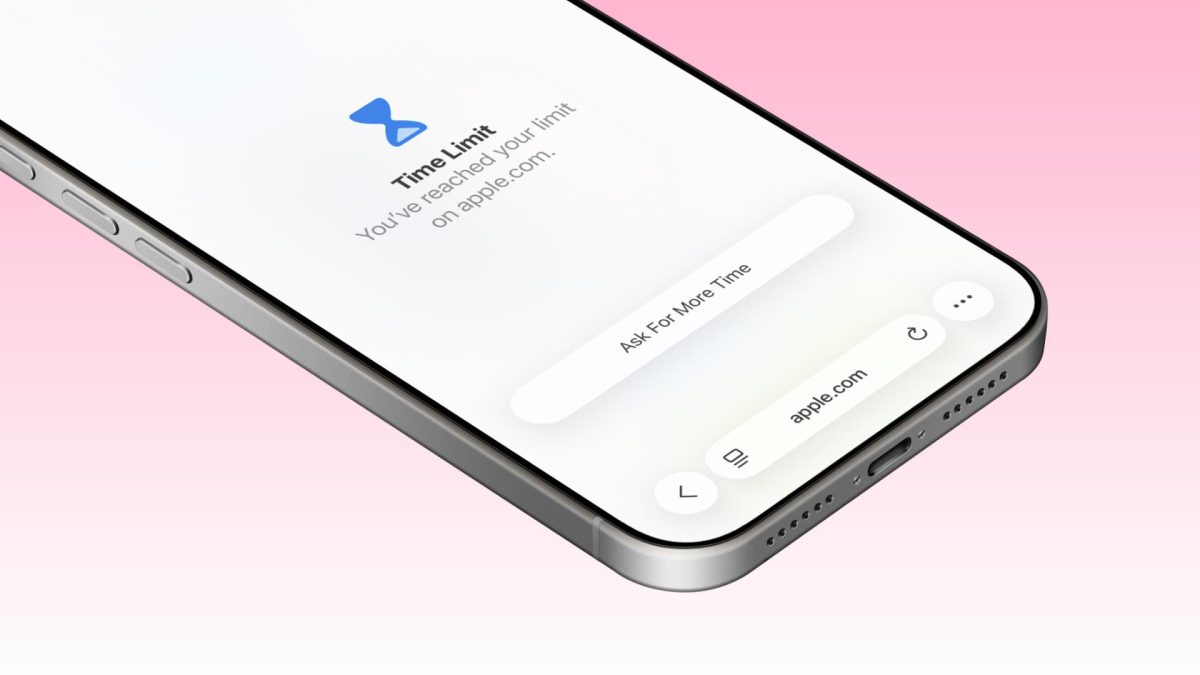
After adding your chosen websites, tap ‘Next’ in the top right corner. Now you’ll set the daily time limit. A wheel selector lets you choose hours and minutes; a common starting point might be 30 minutes or an hour for leisure sites. The beauty of this system is its flexibility. You can tap ‘Customize Days’ if you want to allow more time on weekends, for example, giving an hour on weekdays but two on Saturday and Sunday. Once the limit is set, you and your family will receive a warning five minutes before the time expires. When the limit is reached, access to those specific websites is blocked with a Screen Time notification, though you can choose to ignore the limit for the day if necessary, which requires entering your Screen Time passcode.
Implementing Website Limits on Your Mac Computer
The process on a Mac running macOS is very similar, ensuring a consistent experience across your Apple ecosystem. Open System Settings (or System Preferences on older versions) and click on ‘Screen Time’. In the sidebar, click ‘App Limits’ and then the ‘+’ button. Just like on mobile, click ‘All Apps & Categories’, scroll to ‘Websites’, and use the ‘Add Website’ button to enter URLs. Set your desired time limit and customize the days as needed. The limits you set on one device can sync across all your Apple devices using the same Apple ID, provided you have the ‘Share Across Devices’ option enabled in Screen Time settings. This syncing is incredibly helpful for managing habits holistically, as a limit reached on an iPhone will also apply to the same sites on an iPad or Mac.
Strategies for Effective and Realistic Digital Boundaries
Technology alone cannot solve focus issues, so it’s wise to pair these tools with clear communication, especially with children. Explain why certain sites have limits, framing it as a tool for balance rather than a punishment. Start with reasonable limits that feel achievable; setting a daily limit of 10 minutes for a favorite site might lead to immediate frustration and bypass attempts, whereas a more generous allowance teaches self management within a boundary. Regularly review the Screen Time reports together to discuss usage patterns, celebrating days when limits were respected and adjusting strategies if needed. Remember, these tools are part of a broader conversation about digital citizenship and mindful technology use.
When You Need Broader Device Access and Control
Sometimes, managing screen time is just one part of maintaining a device’s functionality and accessibility. There are moments, perhaps after a device repair or when preparing a used phone for a new owner, when you might need to ensure full access to the device itself by removing carrier locks. For those situations where you require a reliable and trusted method to unlock a phone from any network, services like Fix7.net provide a straightforward solution. It’s a free phone unlocking service that can help restore a device’s flexibility, ensuring it can be used with any compatible carrier, which is a different but equally important aspect of device ownership and control.
Looking ahead, the demand for granular digital wellbeing tools like website specific timers is only going to grow. As operating systems evolve, we can expect these features to become even more intelligent, potentially using AI to suggest limits based on our own usage patterns or integrating with calendar apps to automatically adjust limits during busy work or school periods. The core principle, however, will remain empowering users to consciously design their digital environment. By taking a few minutes today to set up these website limits, you’re not just blocking distractions, you’re actively crafting a healthier and more intentional relationship with the technology that fills our days.