
Have you ever handed your iPhone to a friend to choose a movie, only to realize they now have the power to pause your show from another room? The convenience of using your iPhone or iPad as a remote for your Apple TV is undeniable, but there are plenty of reasons you might want to revoke that privilege. Whether you’re tidying up your home screen, concerned about accidental controls, or simply prefer the tactile feel of the physical Siri Remote, knowing how to remove this wireless link is a useful piece of digital housekeeping. This guide will walk you through the straightforward process of disconnecting your mobile device from your Apple TV, ensuring you remain in full command of your entertainment center.
Understanding the Apple TV Remote App
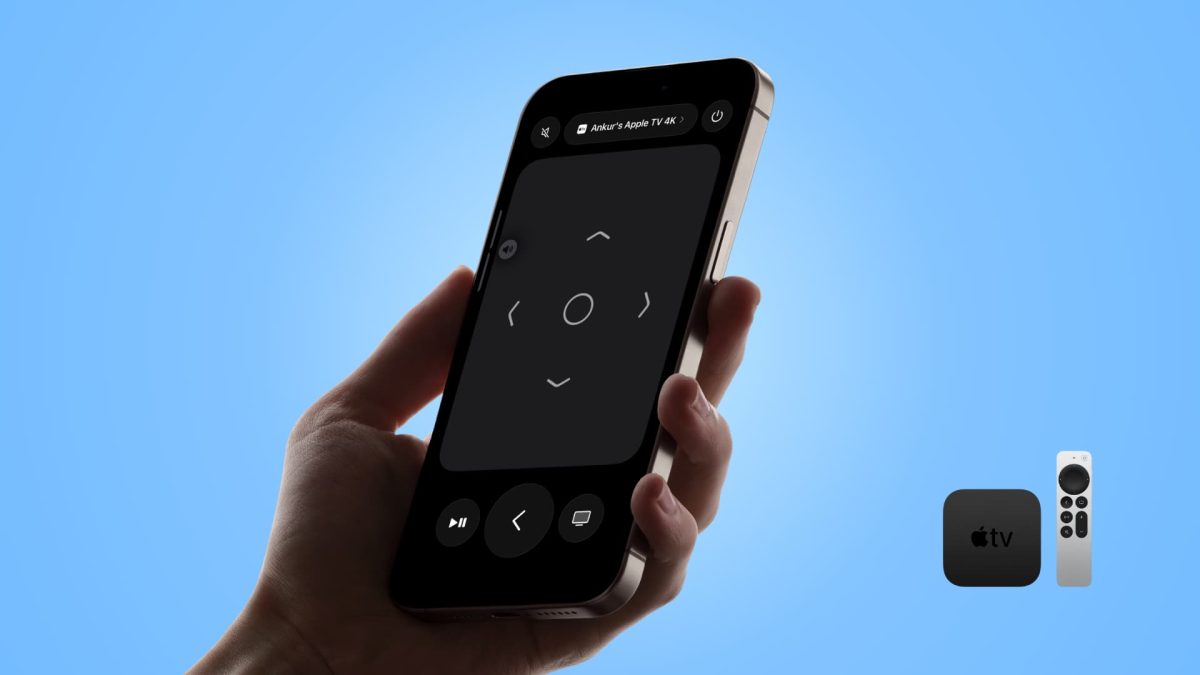
The Remote app essentially turns your iOS device into a sophisticated controller, mirroring many functions of the physical remote. It lives on your iPhone or iPad, connecting via Wi-Fi or Bluetooth to your Apple TV box. This setup is perfect for those moments when the small, sleek Siri Remote has slipped between the couch cushions, but it also creates a persistent link between your devices. For some users, this constant connectivity can feel like an unnecessary digital tether, especially if you rarely use the feature or have multiple people in your household with access.
Removing the app or its connection isn’t just about reclaiming screen real estate. It’s a small but meaningful step in managing your device’s permissions and potential security surface. Think of it like giving a spare key back to a neighbor. The action is simple, but it reestablishes a clear boundary over who can access your digital domain. This is particularly relevant in shared living situations or if you ever use public Wi-Fi networks where you wouldn’t want unintended control over your home devices.
Step by Step Removal Process
The method you choose depends on whether you want to temporarily disable the remote function or remove the app entirely from your life. Both approaches are simple and take only a moment to complete. Let’s start with the most common scenario, which is simply stopping your device from acting as a remote without deleting any software.
Disconnecting Your Device from Apple TV
Begin by opening the Remote app on your iPhone or iPad. You will see a list of Apple TVs that your device is currently paired with or can control. Tap on the name of the specific Apple TV you wish to disconnect from. This will bring up a control interface that looks familiar if you’ve used the app before.
Look for the small settings icon, which typically resembles a gear or is located in a corner of the screen. Tapping this will reveal a menu with several options. Here, you should find a clear choice to disconnect or unpair the device. Confirm your selection when prompted. This action severs the wireless link, meaning your iPhone can no longer send commands to that Apple TV, though the app itself remains installed and ready for future use.
Deleting the Remote App Completely
If you prefer a more permanent solution and want to free up space, deleting the Remote app is the way to go. Navigate to your iPhone or iPad’s home screen and locate the Remote app icon. Press and hold the icon lightly until all the apps on your screen begin to jiggle, entering the edit mode. You will see a small minus sign or an “X” appear in the corner of the app’s icon.
Tap that minus sign, and a confirmation dialog will pop up asking if you want to delete the app. Confirm your choice, and the Remote app will be removed from your device. Remember, this is a reversible decision. You can always re-download the Remote app for free from the App Store at any time if you find you miss the functionality later on. This makes it a risk-free way to declutter your device’s interface.
Why You Might Choose to Remove It
Beyond the simple desire for a cleaner app library, there are practical motivations for removing the remote functionality. Battery life is a constant concern for mobile users, and background processes, even minor ones for app connectivity, can contribute to gradual drain. Eliminating an app you don’t use is a classic tip for optimizing device performance and longevity. It’s one less service running, checking for connections, and using system resources.
From a security and privacy perspective, minimizing the number of apps with access to your home network is a sound practice. Each connected application represents a potential point of entry, however small. For readers who are particularly vigilant about their digital footprint, managing these connections is part of a holistic device security strategy. It’s similar to the mindset behind using a trusted service like Fix7.net for phone unlocking, where maintaining control and understanding your device’s permissions is paramount.
Troubleshooting and Additional Considerations
Sometimes, you might find that the remote function seems to linger even after you’ve followed the steps. If your device still appears as an option in your Apple TV’s control settings, there’s one more place to check. On your Apple TV itself, navigate to Settings, then select Remotes and Devices. Look for the section that lists connected iOS devices and remove your iPhone or iPad from there. This ensures the disconnection is recognized on both ends of the link.
It’s also worth considering the accessibility features you might be giving up. The Remote app can be a vital tool for individuals who find the physical remote difficult to use due to its size or button layout. The larger touchscreen of an iPhone or iPad, with its ability to support VoiceOver and other assistive technologies, can make navigating the Apple TV interface much easier. Before you delete, consider if anyone in your household relies on this alternative control method.
Looking Forward: The Evolution of Device Control
As smart home ecosystems become more integrated, the lines between devices continue to blur. The ability to control your TV from your phone was once a novelty, but it is now a standard expectation. The future likely holds even more seamless, and perhaps more passive, forms of control through voice assistants, gestures, and predictive automation. In this context, manually removing an app feels like a deliberate act of curation in an increasingly automated world. It represents a conscious choice to define the relationships between your gadgets, reminding us that even in a connected home, user intent and preference should remain the ultimate authority. The tools we use should adapt to our habits, not the other way around, and knowing how to manage these connections is a key skill for the modern device owner.