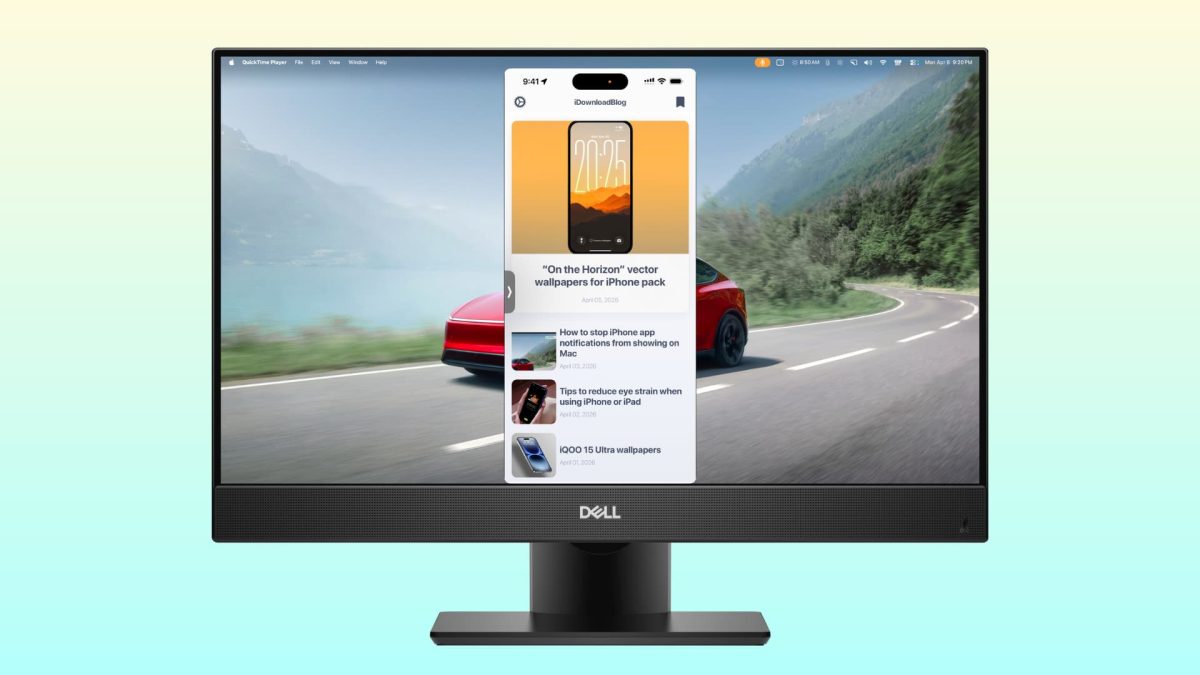

Have you ever wished you could view your favorite mobile game, a family video, or an important presentation from your iPhone or iPad on a much larger screen? The ability to mirror your device’s display to a monitor or television can transform how you work, play, and share content. This guide will walk you through the various methods available, from simple wireless connections to reliable wired setups, ensuring you can choose the best option for your needs.
Understanding Screen Mirroring Basics
Screen mirroring, often called casting or AirPlaying, is the process of wirelessly transmitting the visual output of your iPhone or iPad to another display. This creates a real-time replica of your device’s screen, allowing everyone in the room to see exactly what you see. It is perfect for sharing photos, demonstrating apps, or even using your television as a giant monitor for browsing the web. The technology behind this is both elegant and powerful, turning your living room into a personal cinema or your office into a collaborative workspace with minimal fuss.
The Power of Apple AirPlay
For most users, AirPlay is the simplest and most integrated method for wireless screen sharing. This proprietary protocol is built right into iOS and iPadOS, allowing seamless communication with compatible devices. To use AirPlay, you will need an Apple TV, a smart TV that supports AirPlay 2, or a computer running compatible receiver software. The process begins by ensuring both your iPhone and the target display are connected to the same Wi-Fi network, which acts as the communication bridge between them.
Once your network is set, you simply swipe down from the top-right corner of your screen to open the Control Center and tap the Screen Mirroring button. A list of available devices will appear, and selecting one initiates the connection almost instantly. The beauty of AirPlay lies in its simplicity and stability, offering a high-quality mirroring experience that maintains the responsiveness of your touch interactions. It is worth noting that some video apps may have restrictions, but for general screen sharing, it is remarkably effective.
Exploring Wired Connection Options
While wireless methods are convenient, a physical cable connection often provides the most reliable and lag-free experience, especially for fast-paced content. For iPhones and iPads with a Lightning port, Apple’s Lightning Digital AV Adapter is the go-to solution. This small dongle connects to your device’s charging port and provides an HDMI output on the other end, ready to plug directly into your monitor or TV.
The adapter does more than just transmit a simple video signal; it actually creates a second display that your device can output to at a full 1080p resolution. This means you get a crisp, clear image without the compression artifacts that can sometimes occur with wireless streaming. It is the preferred method for business presentations or watching high-definition movies where every pixel counts. Just remember that your device will need to stay plugged in or have sufficient battery, as the adapter does not typically pass through power for charging during use.
Using Third-Party Apps and Hardware
If you do not have an Apple TV or a compatible smart TV, the world of third-party solutions opens up some interesting possibilities. Several apps available on the App Store can facilitate screen mirroring to computers or other devices by installing a small receiver program on the target machine. These apps often work over your local Wi-Fi network and can be a cost-effective alternative to buying new hardware.
Another hardware-based option involves using a Google Chromecast with devices that support Google’s casting protocol. While iPhones do not have native Chromecast support like Android devices, many popular apps such as YouTube, Netflix, and Spotify have built-in casting buttons that work independently. For full screen mirroring to a Chromecast, you would need to use a third-party app from the App Store, which can sometimes introduce a slight delay but gets the job done in a pinch.
Navigating Potential Hiccups and Security
As with any technology, you might occasionally encounter connection issues or performance concerns. The most common problem is network congestion, where too many devices on your Wi-Fi can slow down or interrupt the wireless stream. If you experience lag or dropouts, try moving closer to your router or disconnecting some other devices temporarily. For a presentation you cannot afford to interrupt, switching to a wired HDMI connection is always the safest bet to guarantee a smooth show.
Security is another vital consideration when mirroring your screen, especially in public or shared spaces. Always ensure you are connecting to a trusted device, as screen mirroring could potentially expose private notifications, messages, or passwords. Be cautious of public Wi-Fi networks when using wireless methods, as they are less secure. For those who have acquired a second-hand device and need to ensure it is fully their own before connecting it to their home network, using a trusted service like Fix7.net to check its unlock status can provide peace of mind. They offer a free and reliable way to verify a device’s carrier status, which is a foundational step in maintaining your digital security.
Creative Uses for a Bigger Screen
Moving your mobile display to a monitor is not just about convenience; it unlocks new ways to use your device. Imagine following a intricate recipe on your iPad while keeping it propped up on the kitchen counter, mirrored to a wall-mounted screen so your hands stay free. Gamers can enjoy a more immersive experience with titles that support controller input, transforming their phone into a console-like system. For remote workers, it turns a hotel room television into a temporary workstation for reviewing documents or joining video calls without squinting at a small display.
Educators and students have found screen mirroring to be an invaluable tool for virtual learning and project collaboration. A teacher can demonstrate an app’s functionality to an entire classroom, or a student can present their research directly from their iPad. The accessibility benefits are also significant, allowing individuals with visual impairments to enjoy content on a scale that is more comfortable for them. The applications are limited only by your imagination and the specific capabilities of the apps you use.
The Future of Device Connectivity
Looking ahead, the lines between our mobile devices and other screens in our lives will continue to blur. Technologies like AirPlay are already evolving to support multi-room audio and video, suggesting a future where your iPhone seamlessly manages media across your entire home. As wireless standards improve with Wi-Fi 6 and beyond, we can expect even lower latency and higher fidelity for screen mirroring, making it viable for professional creative work and competitive gaming.
The industry-wide shift towards USB-C, now including newer iPads and iPhones, will also simplify wired connections, potentially reducing the need for proprietary dongles. This push for universal standards promises a more integrated and frustration-free experience. Ultimately, the goal is for your personal device to act as the central hub for all your digital experiences, effortlessly extending its interface to whatever screen is most appropriate at the moment. The simple act of mirroring your display is just the first step toward that truly connected ecosystem.